Accessing the commissioning interface
Note
Note
Make sure the SmartgridOne Controller is switched on and connected to the network.
Tip
Tip
Troubleshooting
If you have have trouble accessing the commissioning interface, see also "".

Make sure the SmartgridOne Controller is switched on and connected to the network.
If you have have trouble accessing the commissioning interface, see also "".
Make sure you have before proceeding.
Log in to the app (smartphone) or SmartgridX (computer).
Set the view to 'SmartgridOne'
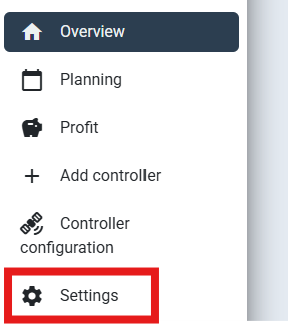
In the settings menu, switch to the SmartgridOne Controller that you want to access.
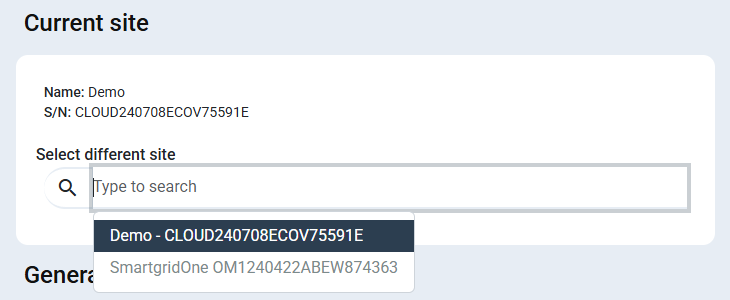
If it says that the SmartgridOne Controller is offline, check out the and the
This option is valid from software version 1.18.x.y onwards.
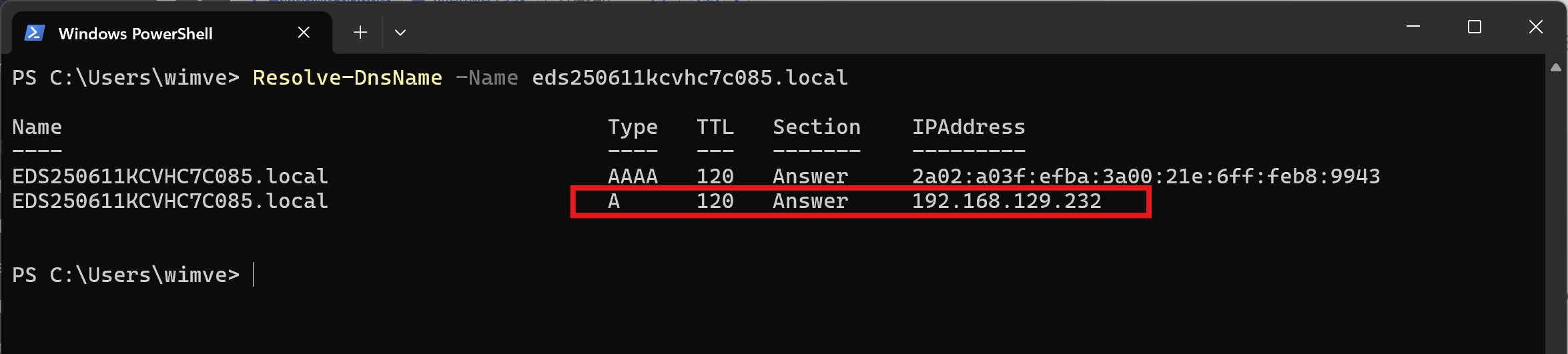
The SmartgridOne broadcasts its IP address through mDNS. This protocol is supported on Windows 11 and newer builds of Windows 10. Older Windows versions do not support mDNS.
If you need to initially configure the controller in a network without DHCP, you can directly connect the controller to your computer (without a router) - and access it through mDNS.
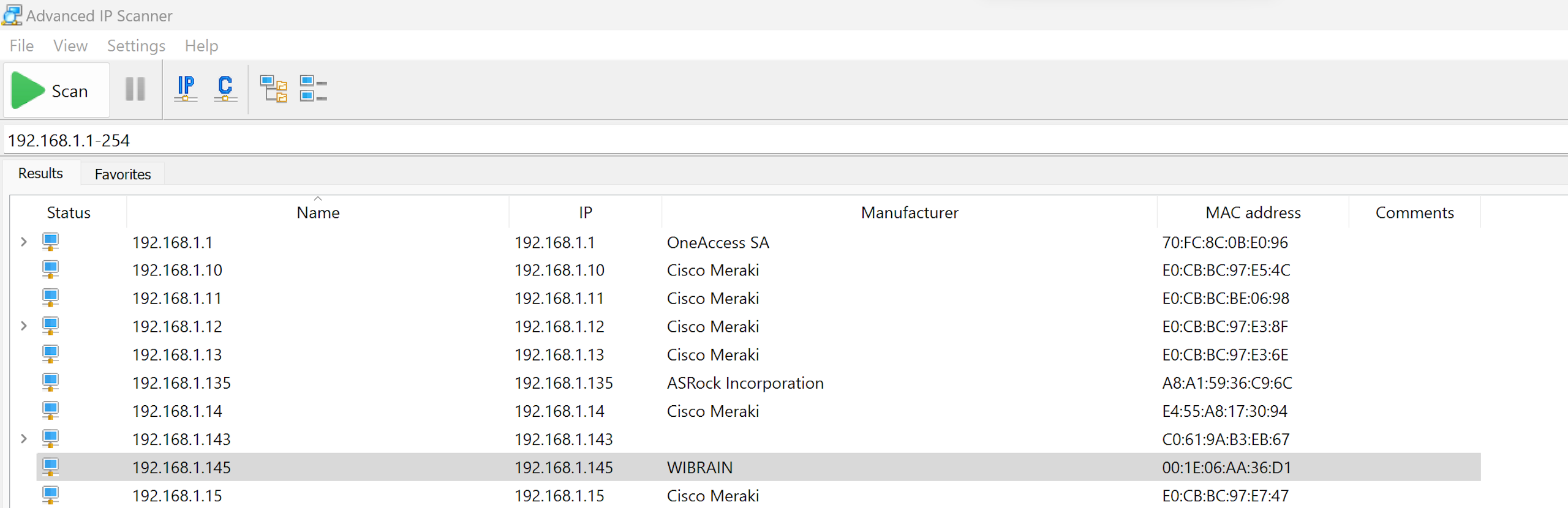
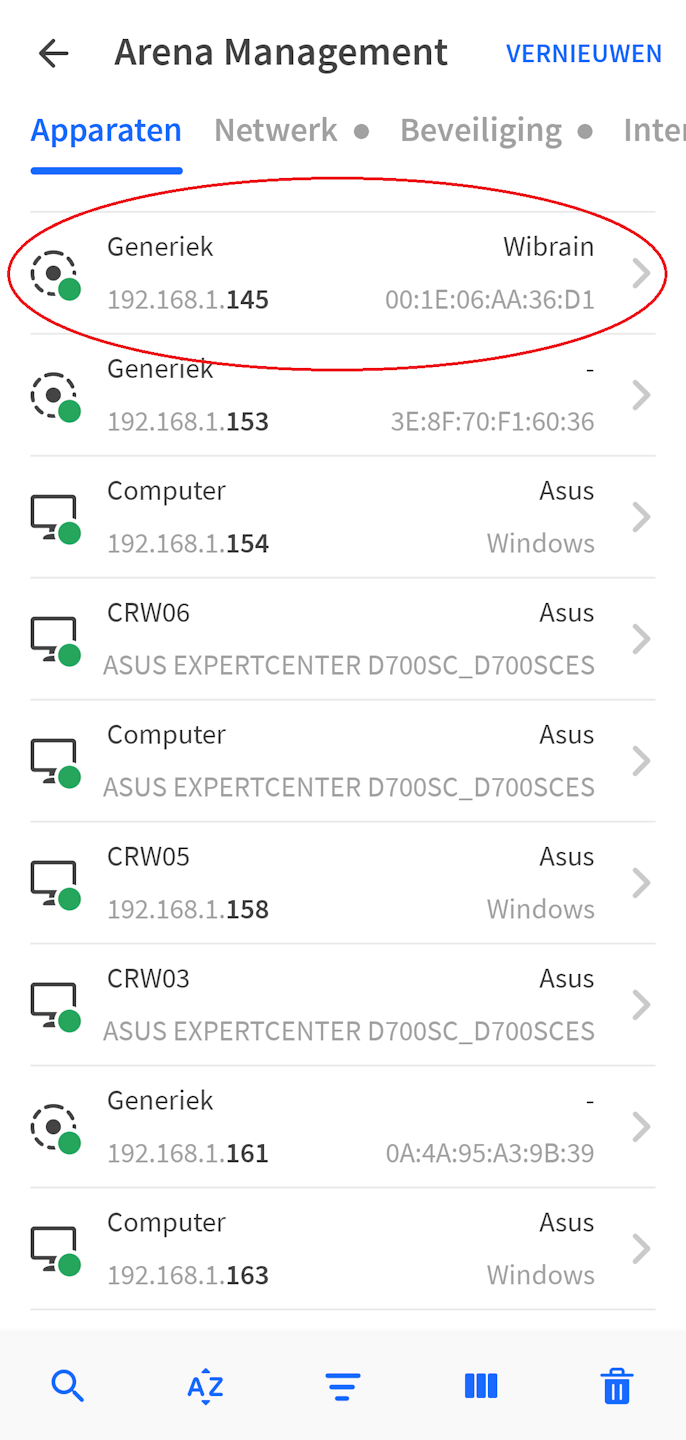
Download an IP scanner such as "Fing" ( or ) or "" (Windows).
Connect your smartphone or computer to the same network as the SmartgridOne Controller.
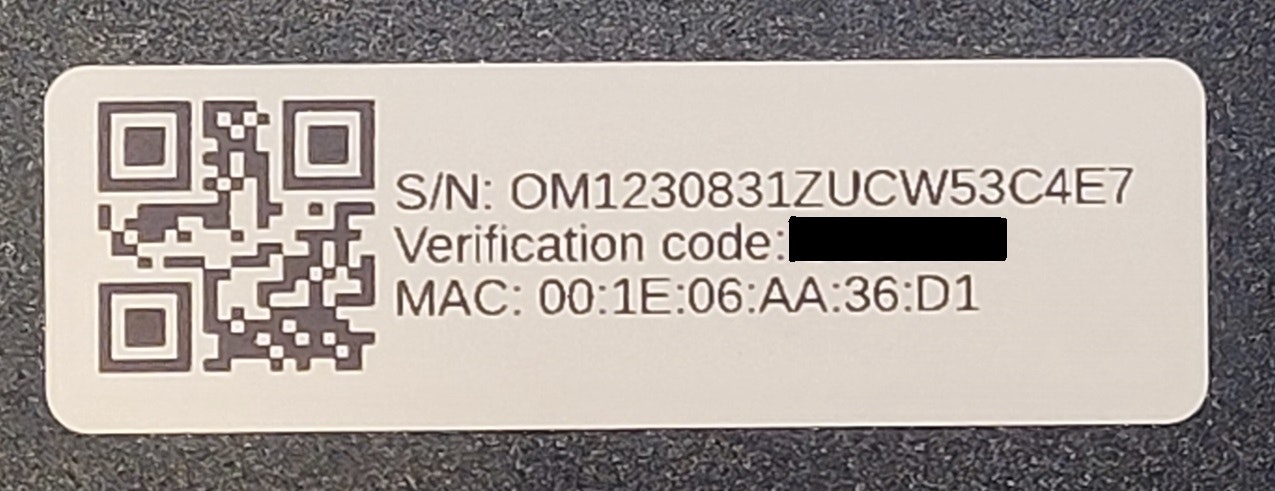
Scan for devices on the network and find the IP address of the device with the MAC address listed on the SmartgridOne Controller's label.
The procedure below is valid from software version 1.18.x.y onwards.
The SmartgridOne broadcasts its IP address through mDNS. This protocol is supported on Windows 11 and newer builds of Windows 10. Older Windows versions do not support mDNS.